Candidates, Links, and Tracking
Add candidates to your Aural interview, share personalized invite links, monitor session status in real time, and configure retake permissions.
Adding Candidates
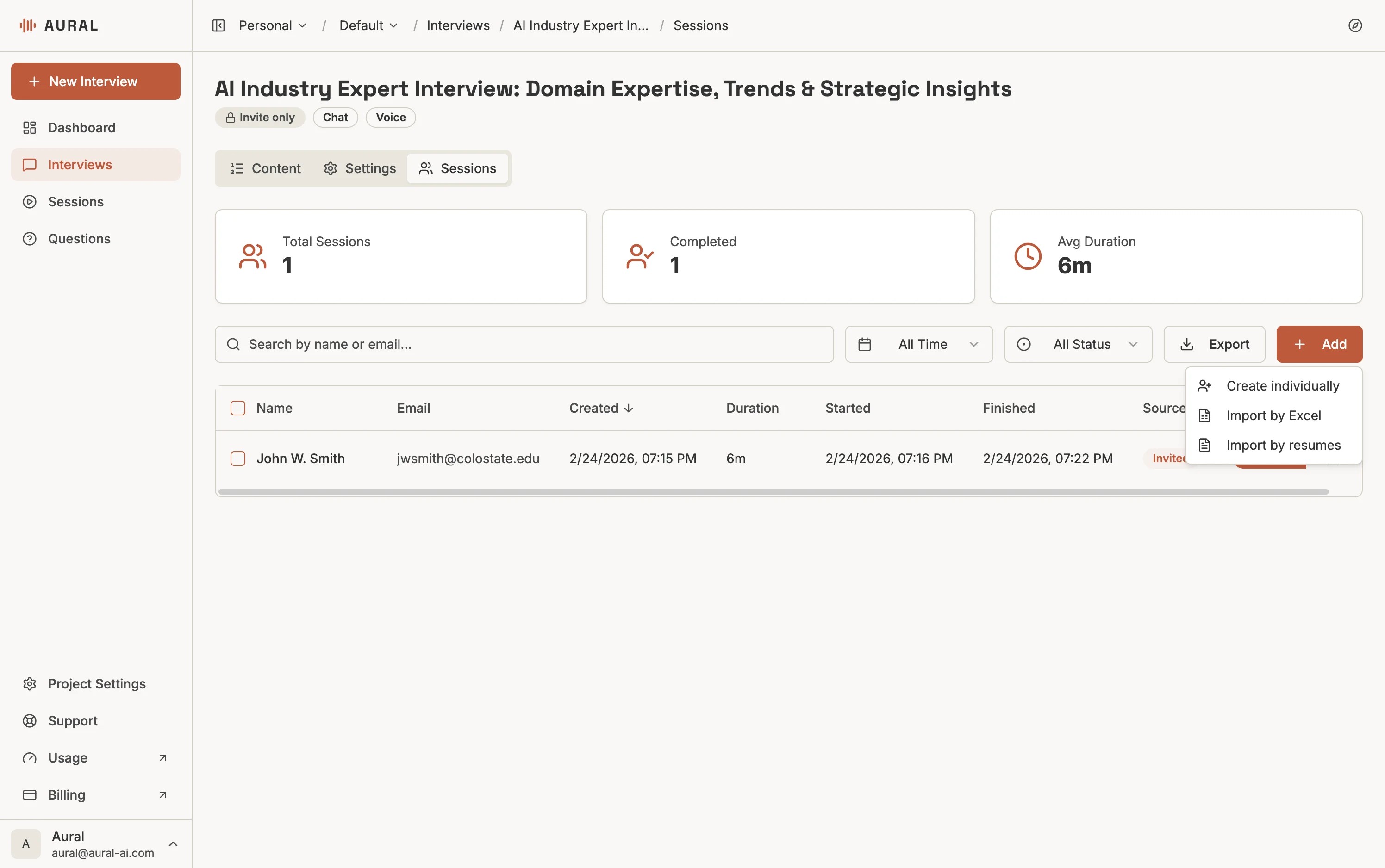
Open your interview, go to the Sessions tab, and click the + Add button. A dropdown menu offers three ways to add candidates:
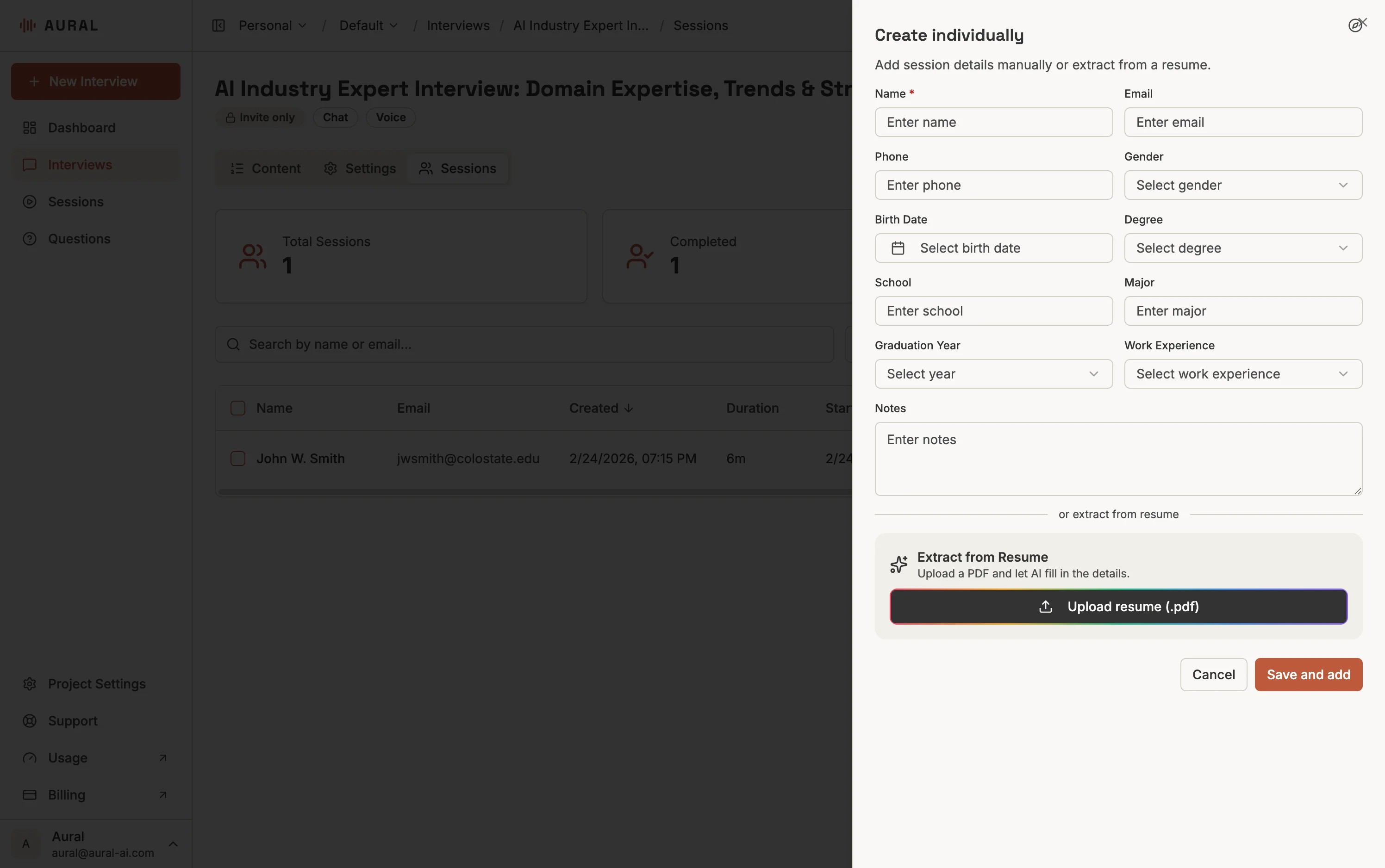
Create Individually
Enter a candidate's name, email, and optional details like phone, school, or work experience. You can also upload a resume to auto-fill the fields.
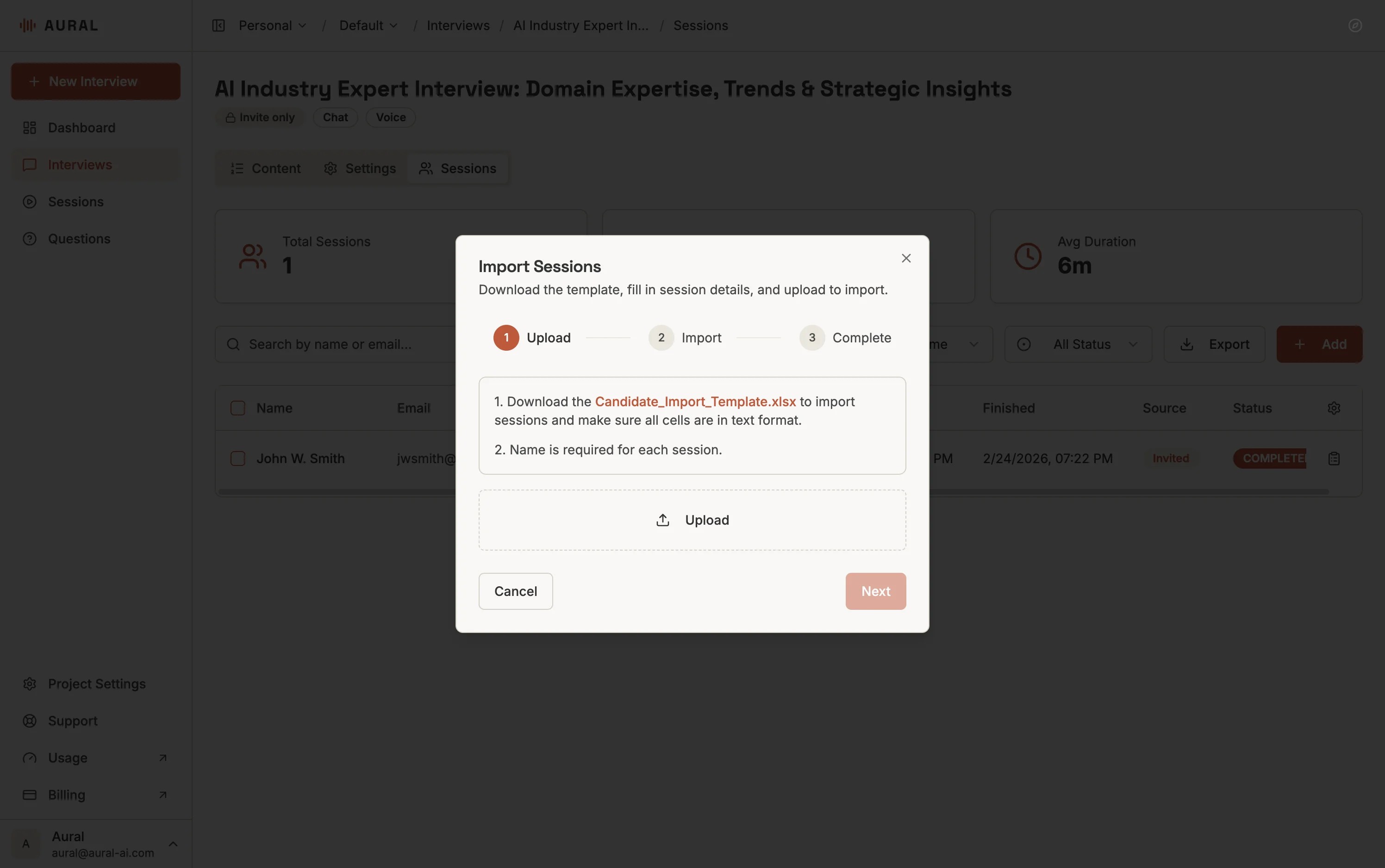
Import by Excel
Download the template, fill in session details, and upload the file. Name is required for each row.
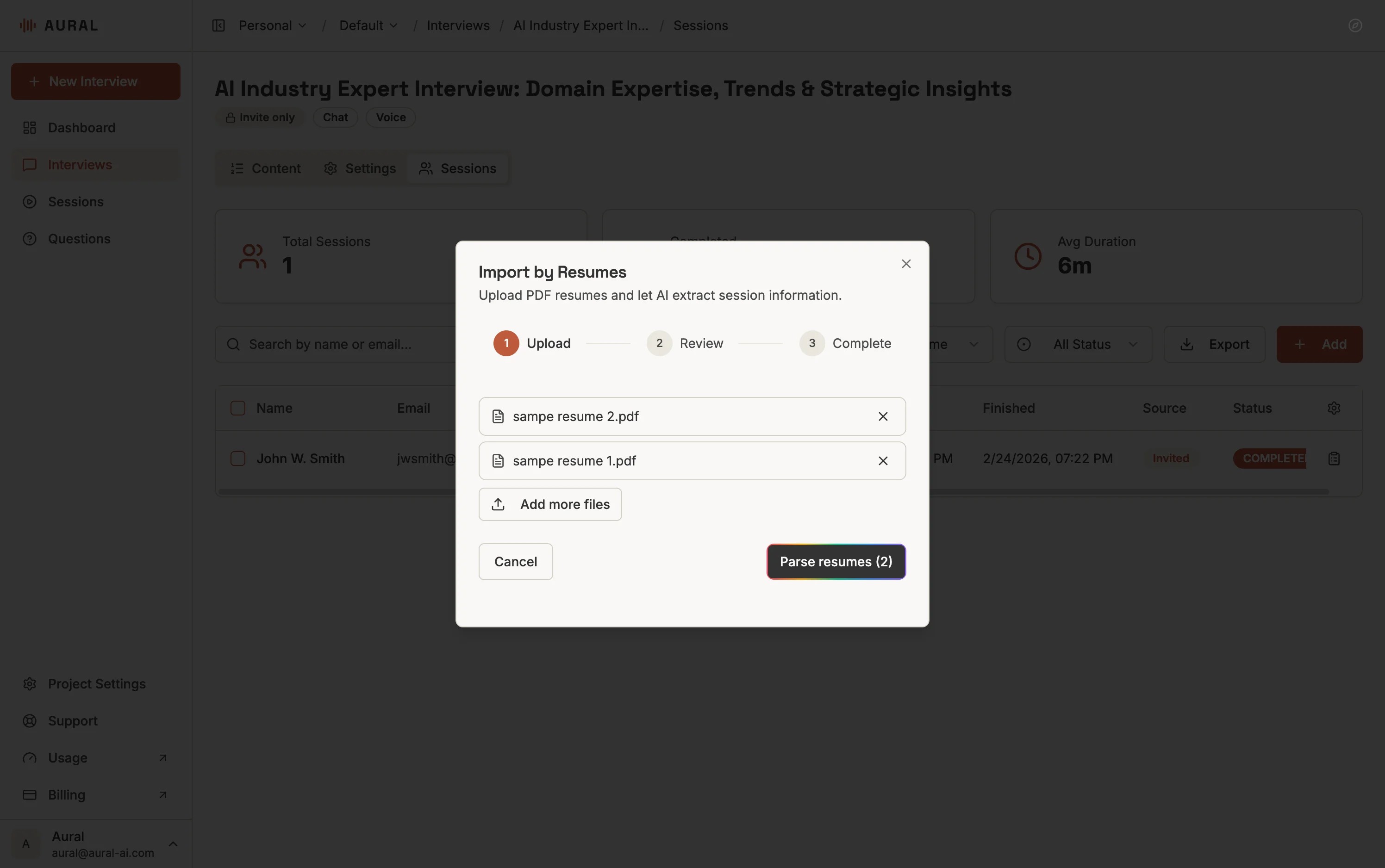
Import by Resumes
Upload PDF resumes and let AI extract candidate information automatically. Each resume costs 5 AI tokens.
Link Types
Public Link
Invite-Only Link
Session States
- Not Started — the candidate has not opened the link yet
- In Progress — the candidate is actively taking the interview
- Completed — the session is finished and AI analysis is available
Filter the Sessions tab by status to focus on active or completed sessions.
Resuming and Retaking
If a candidate leaves before finishing, they can return to the same link and continue where they left off. To start a completely new session (e.g., after technical issues), use the Retake option — the previous session is kept for comparison.