Accessing Your Interview
Open your interview link, verify your identity, test and configure your microphone, and start your AI-powered interview session on Aural.
Before You Begin
You will receive an interview link from the person who invited you. Use Google Chrome on a desktop computer for the best experience.
Browser recommendation
Safari and Firefox may have limited voice and video support. Chrome is strongly recommended.Getting Into Your Interview
Open the Link and Enter Your Details
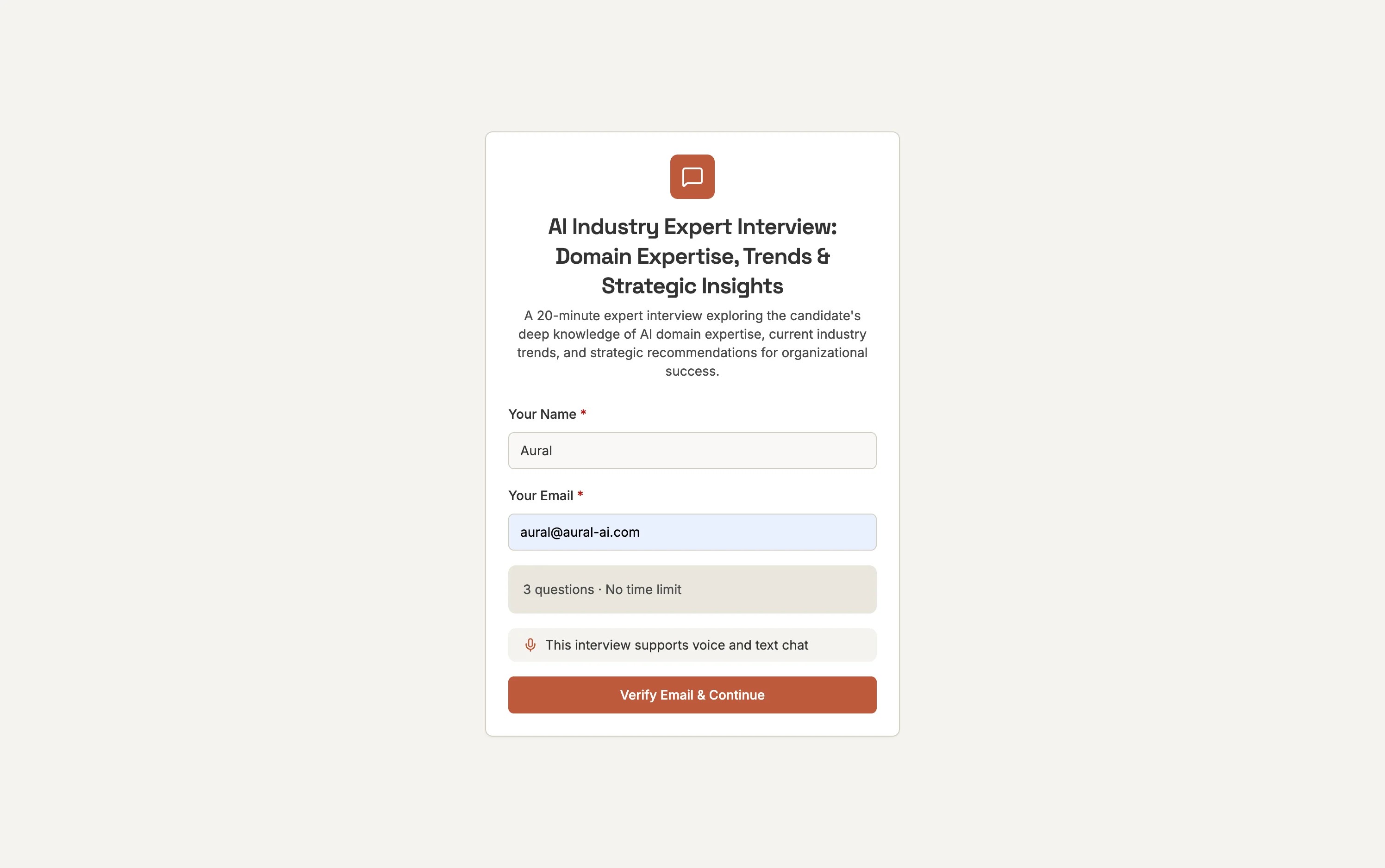
Click the interview link to open the Aural interview page. On the welcome screen, enter your full name and email address, then click Verify Email & Continue.
Verify Your Email
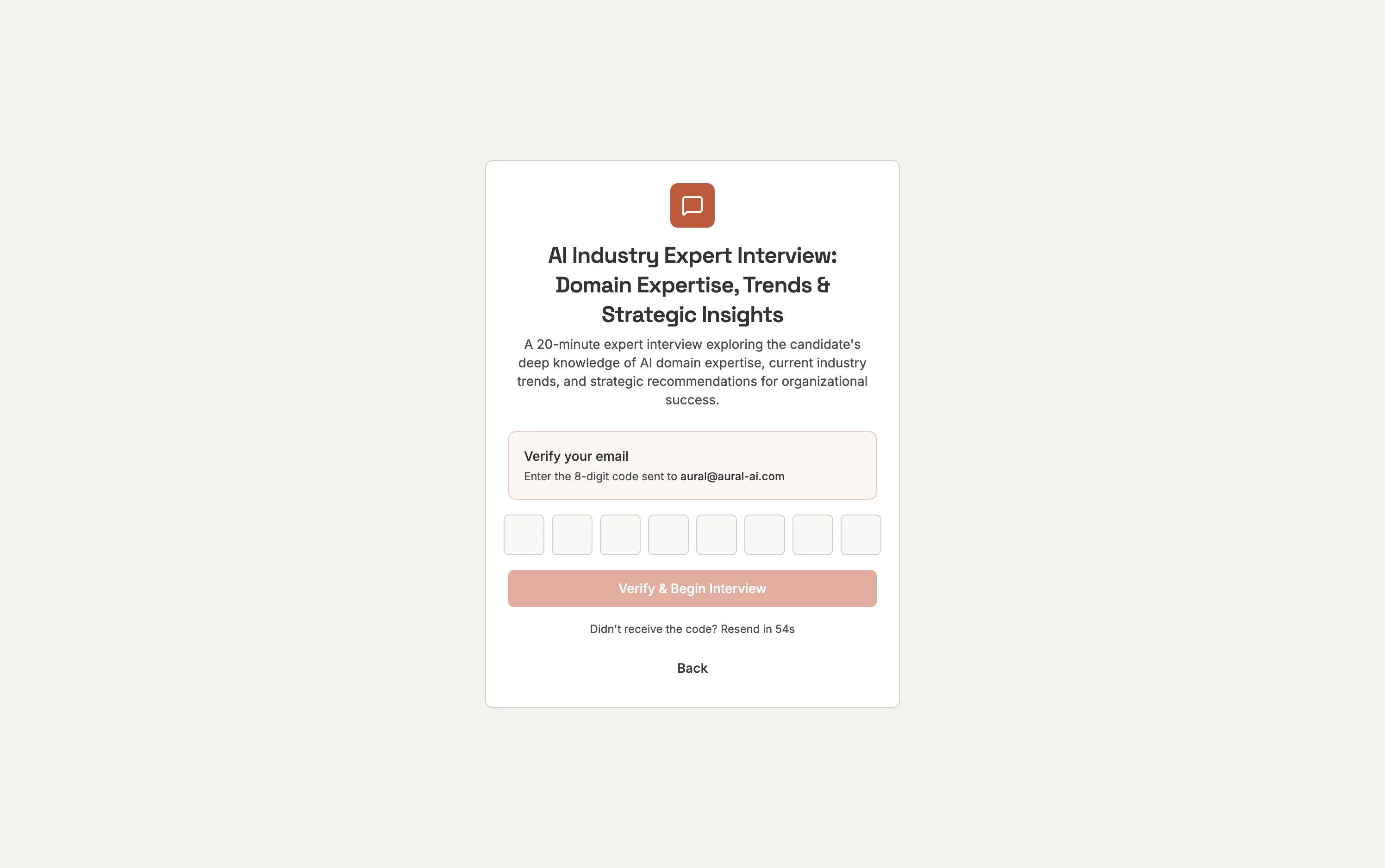
Aural sends a 6-digit code to your email. Enter the code and click Verify & Begin Interview. Check your spam folder if you don't see it.
Complete the Checklist
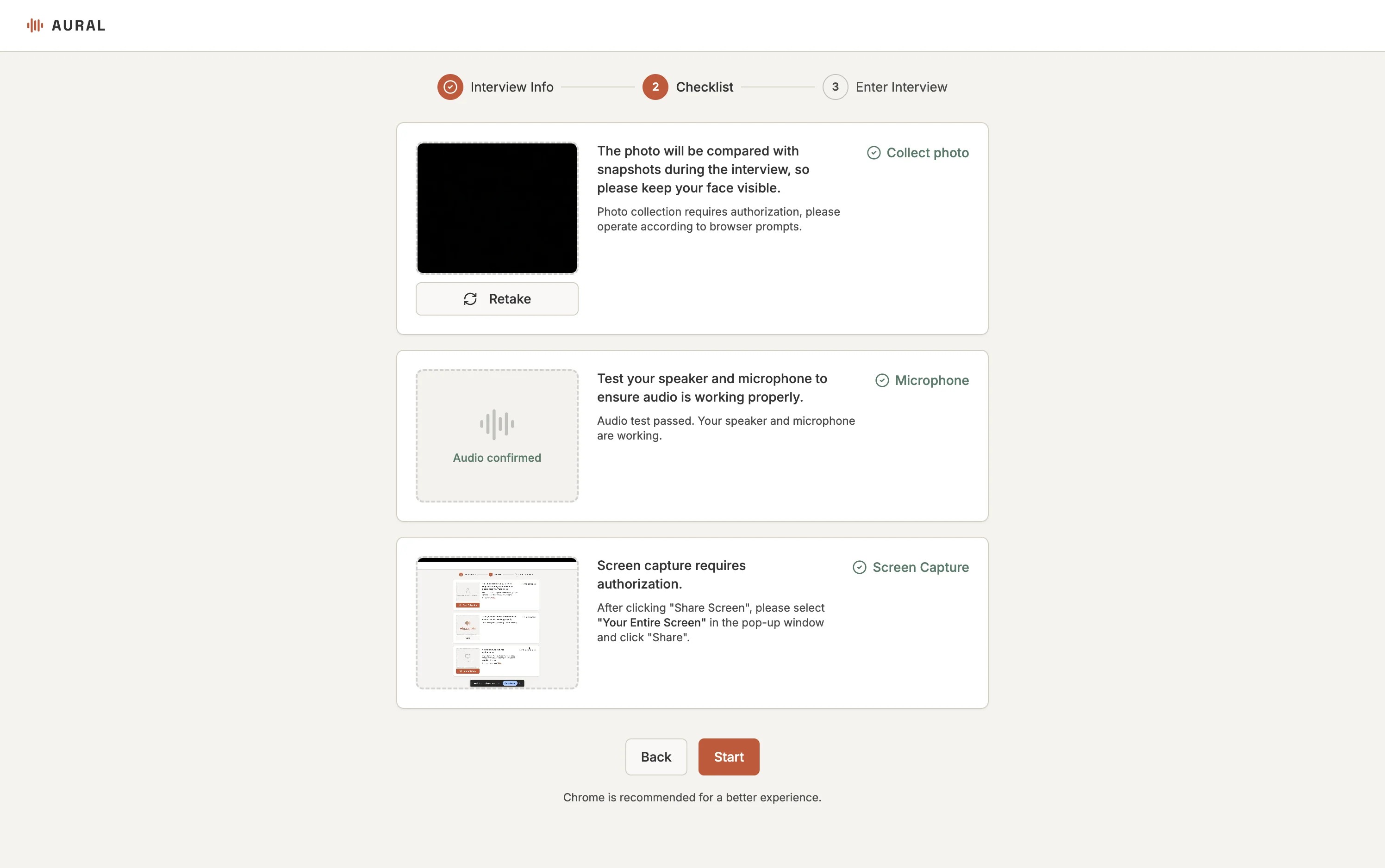
Depending on the interview setup, you may need to grant camera, microphone, and screen capture permissions. Confirm each item on the checklist, then click Start.
Start the Interview
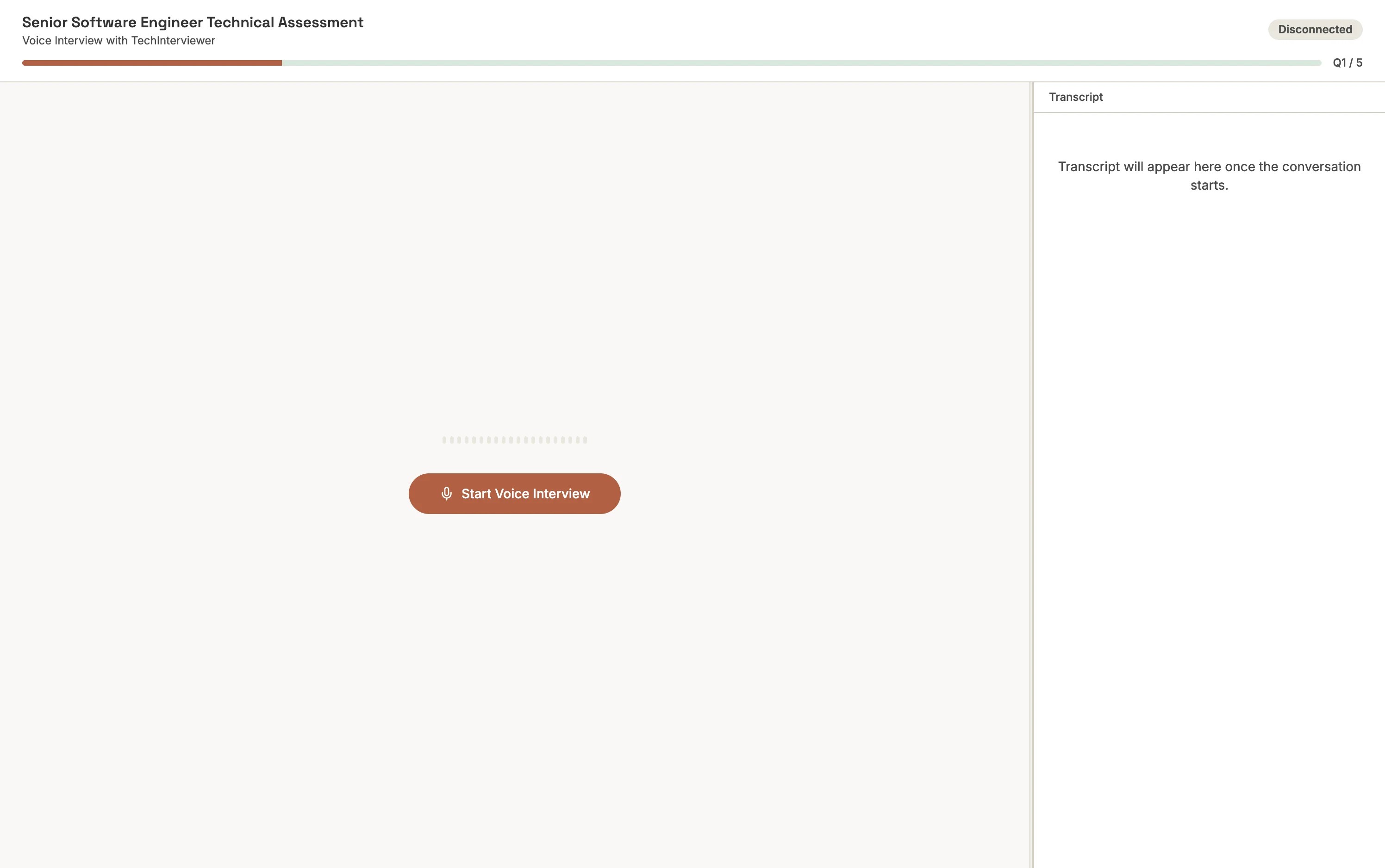
Click Start Voice Interview (or the equivalent button for your interview type). The AI interviewer will introduce itself and begin asking questions.
Tip
Close other apps that might be using your microphone (e.g., Zoom, Teams) before starting.